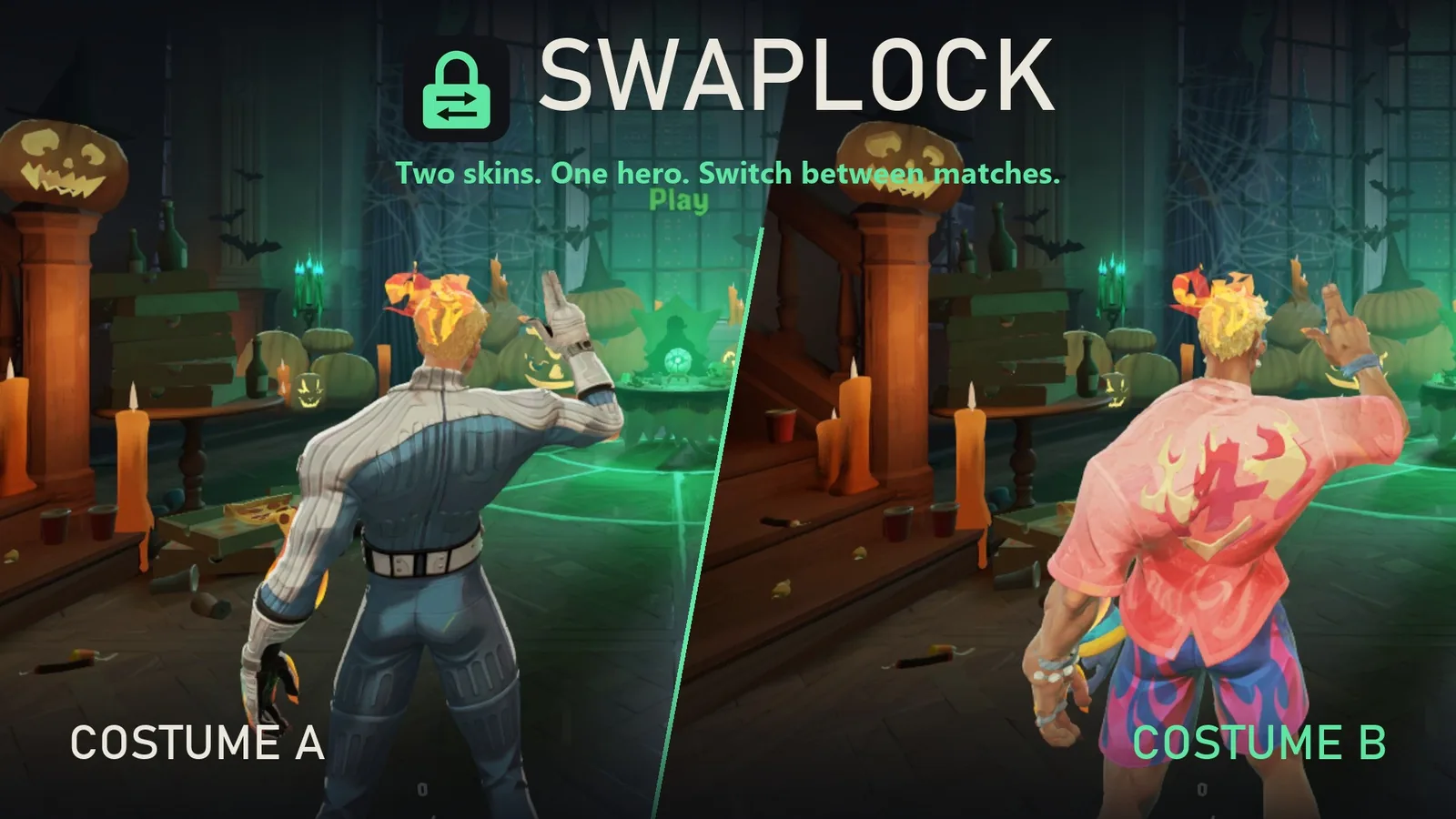
SwapLock
Two skins, one hero. Switch from the ESC menu.
- SwapLock for Windows13 MB zipDownload
No malware detected
Scanned 1 November 2026 with Microsoft Defender (engine 1.1.26100.4, signatures 1.463.70.0).
Inside: SwapLock.exe and the runtime it needs.
SHA-256
46eb2abe9e50938500661acf21796178d6c62d1ec00db782d6ced8227e55c2aeVirusTotal, 1 November 2026: none of 67 antivirus engines flagged it. Full report
A scan catches known malware. It can’t prove a file is harmless. How downloads are checked

About this mod and credits
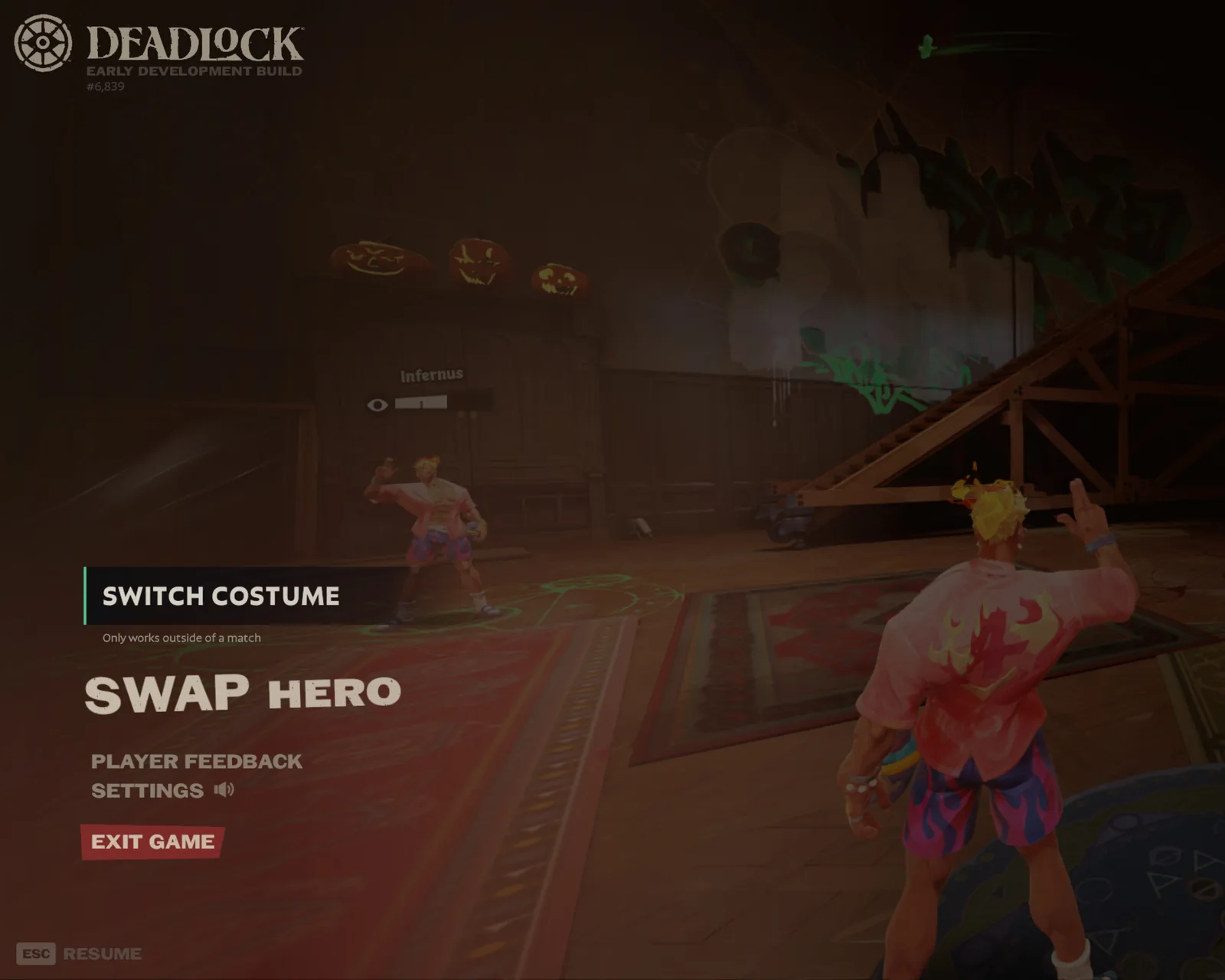
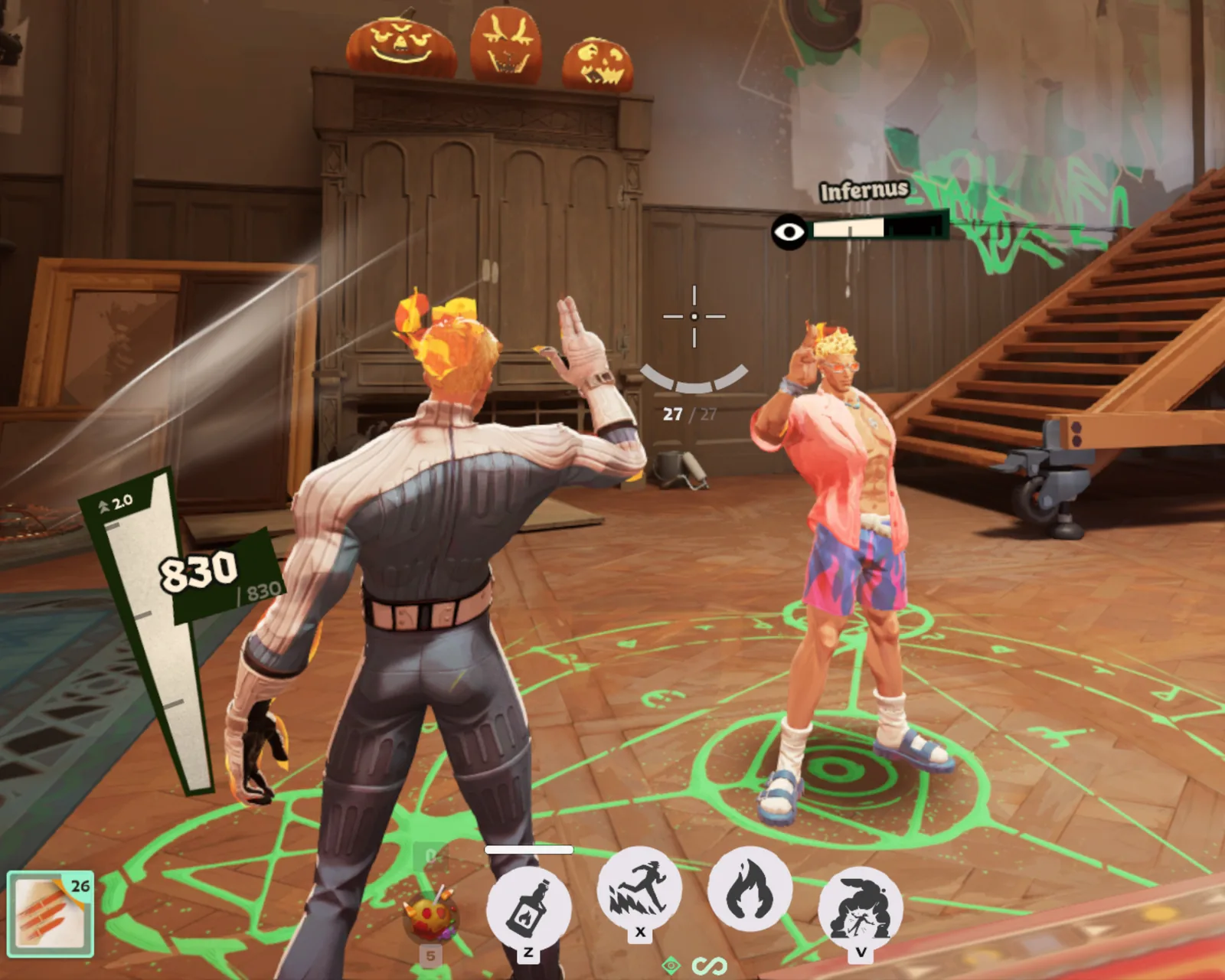
SwapLock lets you put two skins on one Deadlock hero. Press ESC > Switch costume in the hideout to change looks in a few seconds, without restarting the game.
What it does
- Pair two skins for the same hero, or pair a skin with the hero’s default look.
- Find skins in your addons folder or Deadlock Mod Manager’s library, or add a .vpk, .zip, .7z or .rar download.
- Check whether the skins can be paired and see what Costume B leaves out before you build.
- Keep several pairs installed and switch them all with one button.
- Set conflicting mods aside in SwapLock’s library and restore them when you remove the pair.
Install
- Download the zip and unzip the whole SwapLock folder anywhere. Keep the _internal folder next to SwapLock.exe.
- Run SwapLock.exe. The app isn’t code-signed, so Windows may show “Windows protected your PC”. Click More info > Run anyway.
- SwapLock finds Deadlock through Steam. If it doesn’t, click Game folder… and choose …\steamapps\common\Deadlock\game\citadel.
You need Windows 10 or 11 (64-bit). No Python or other installs are needed.
Make a pair
- Close Deadlock.
- Pick a hero. Press Set as A on one skin and Set as B on another, or drag them onto the slots.
- Read the check results, name the outfits if you want, then press Build and install.
- Launch Deadlock from Steam. In the hideout, press ESC > Switch costume.
To remove a pair, open SwapLock > Installed > Remove, or choose Remove all pairs. SwapLock puts the mods it set aside back where they were.
Before you play
- Costume B changes the look only. Voice lines, ability sounds, animations, effects, icons and the hero name come from Costume A or the base game. SwapLock lists what B leaves out before you build.
- Both skins must be for the same hero and fit the same skeleton. SwapLock rejects incompatible pairs.
- Every launch starts in Costume A. Other players using that hero appear in Costume B on your screen. Nobody else sees your skins.
- Switch in the hideout before you queue. The button only appears there because switching reloads the map.
- You can install mods with Deadlock Mod Manager, but its vanilla Play button removes every mod in your addons folder, including SwapLock’s. If that happens, open SwapLock and press Repair.
- Repair also restores SwapLock files removed by a Steam file check. After a Deadlock update, open SwapLock; it will tell you if the in-game menu needs refreshing.
- SwapLock writes mod files to game\citadel\addons. Repair can also update the mods line in gameinfo.gi, with a backup. It uses no DLLs or memory editing and doesn’t change the running game.
- The library and settings are in %LOCALAPPDATA%\SwapLock.
How it works
A hero’s model has levels of detail (LODs). SwapLock keeps skin A at full detail (LOD0) and puts skin B’s meshes in the lower levels (LOD1+). It matches B’s bones to A’s skeleton by name and sets the switching distances to almost zero.
The non-cheat setting citadel_player_model_force_highest_lod is read when a map loads. On by default, it keeps your hero at LOD0, showing A. Turn it off and your hero uses distance-based LODs, showing B at these short distances. Other heroes always use distance-based LODs, so they show B.
The Switch costume button runs toggle citadel_player_model_force_highest_lod; disconnect through an edit to the game’s ESC menu. Disconnecting reloads the hideout so the setting takes effect. You can run the same command in the console.
More mods
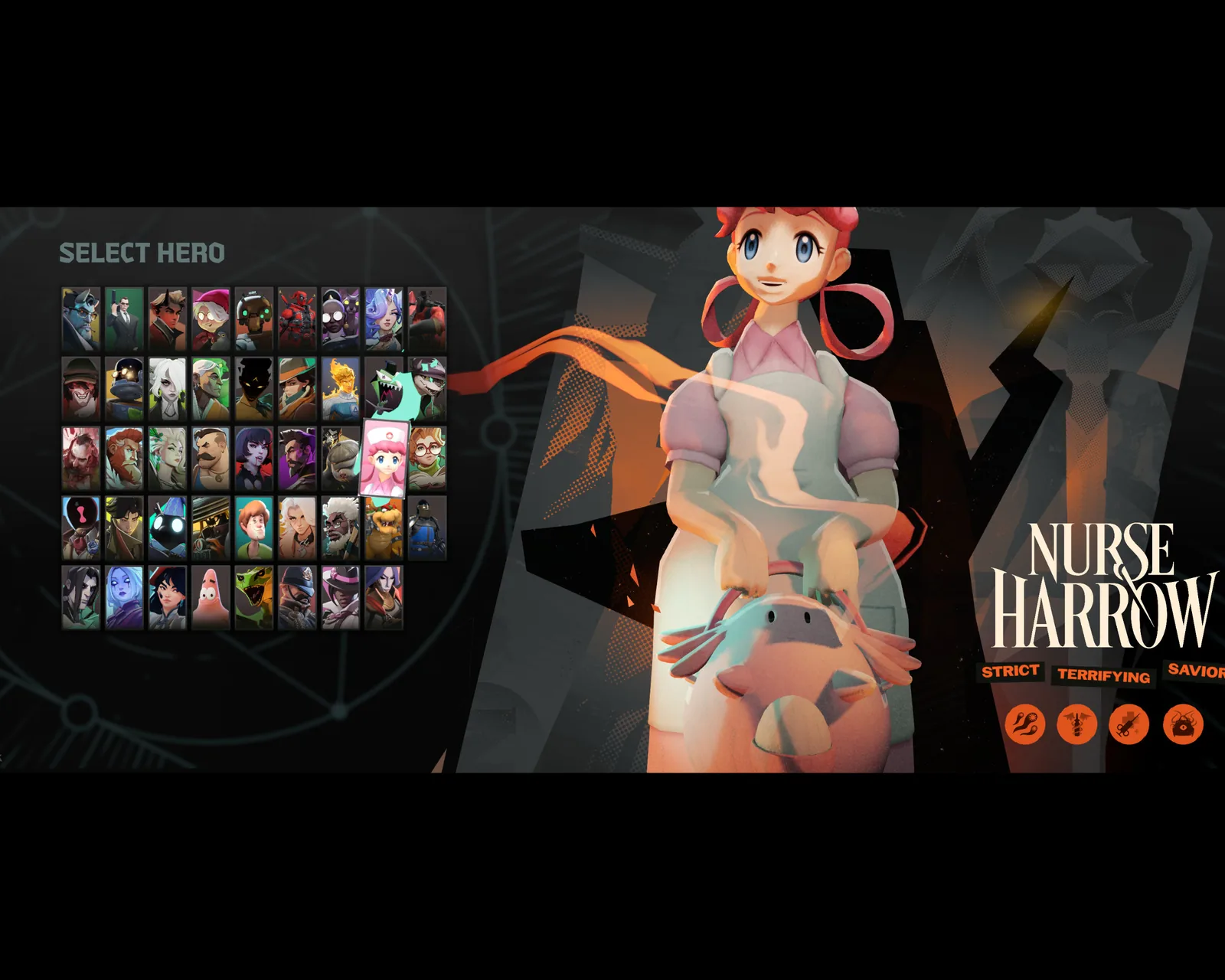
Nurse Joy
over Nurse Harrow
Pokémon: Let's Go, Pikachu! / Eevee!
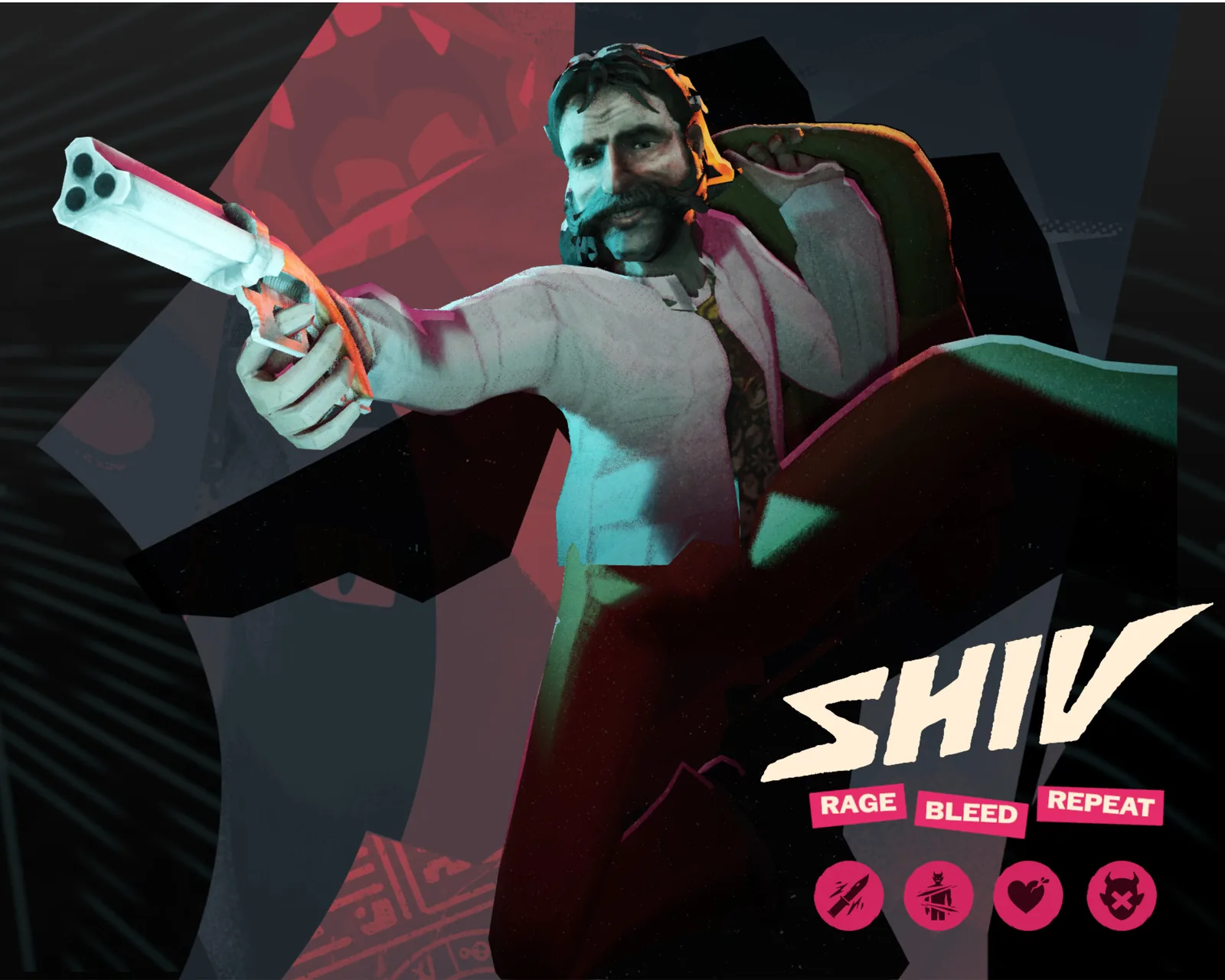
Harry Du Bois
over Shiv
Disco Elysium
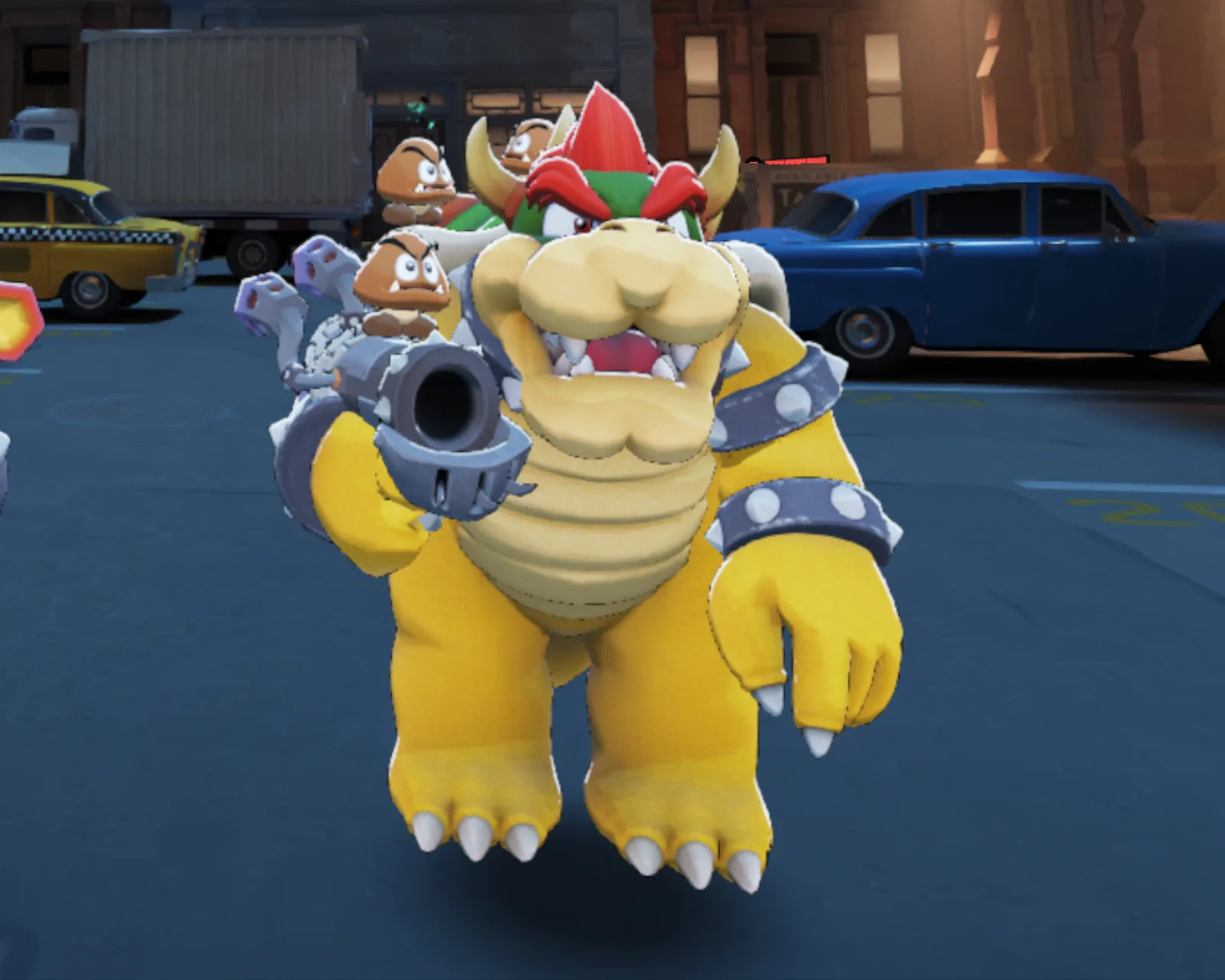
Bowser
over Rat King
Super Mario Odyssey
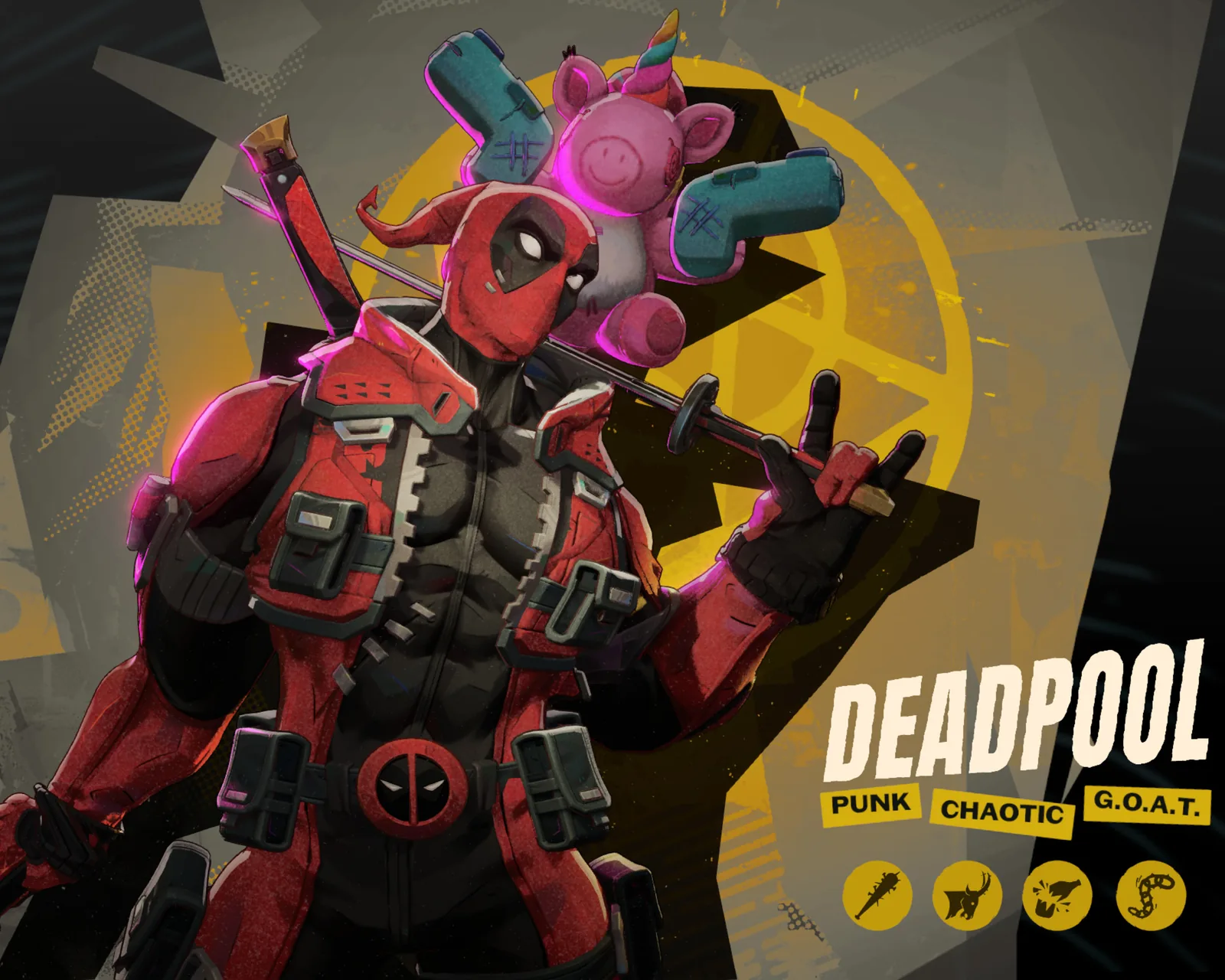
Deadpool
over Billy
Marvel Rivals
Installing your first mod? See how to install it.